What are you looking for?
Receive Your License from Keysight Software Manager (KSM)
When you purchase Keysight software, you receive an entitlement certificate that allows you to request licenses to unlock your software or hardware features. Watch the video for a demo or follow the steps below.
Create a New Keysight Account
If you have not previously registered with Keysight, follow these steps:
- Go to Keysight Software Manager and click New User.
- Enter the Company Email and Password.
- Validate your email address by verifying the link received on your email.
- Continue with Step 3 in the next procedure "Register with an Existing Keysight Account."


Register with an Existing Keysight Account
- Go to Keysight Software Manager.
- Login using your email address and password.
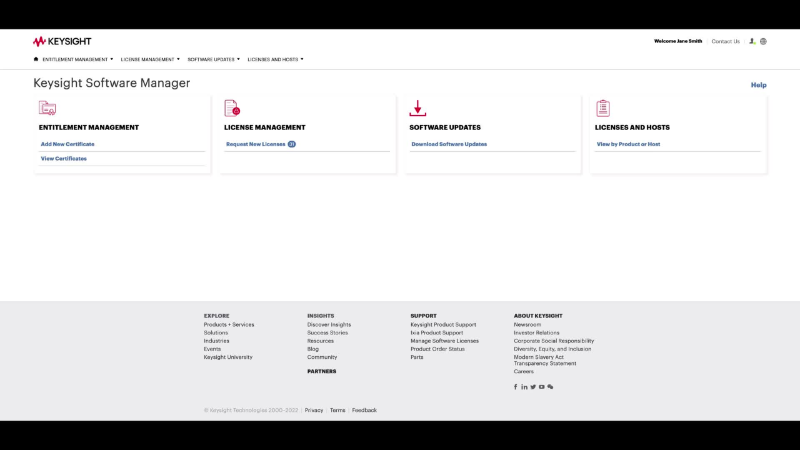
- Open the Add Certificate page. If it is not displayed, go to ENTITLEMENT MANAGEMENT module, click Add New Certificate.
- Enter the Order Number and Certificate Number from your entitlement certificate.
- Click Find Certificate.
- Verify the certificate details and click Add Certificate.
- If you want to get your licenses now, click Request Licenses Now and continue with the next section below starting with Step 4.
To request your licenses later, you'll login to KSM and then continue with the next section starting with Step 2.
Next, request one (or more) licenses
After a certificate is added to your account, you can request licenses from it at any time. You can obtain one license for a single product, all licenses for all purchased products, or any number in between. The following process allows you to obtain one or many licenses in a single session. For more information on the steps, see the KSM online help.
Follow these steps (video demo on the right) to request licenses:
- If not already logged in, login to Keysight Software Manager.
- Ensure your entitlement certificate has been added to your account and that you know the host ID for the computer or instrument that will run the software.
- From the KSM main menu, click Request New Licenses.
- Assign the software to the host that will run it:
- In the My Products table, select the product(s) for a specific host, and specify a quantity if required.
- Click Assign Products.
- Enter the Host ID, then click Save.
Note: Ensure the Host ID is entered in the correct format. Hover over the field to display a tooltip that provides information on the required format. - Repeat this process for each additional host.
- Click License Preview to confirm that your products are assigned to the correct hosts. If any are incorrect, change the product/host assignments before you generate the licenses.
- Click Request Licenses.
- Click either the Download or Email option to obtain the corresponding license files and installation instructions.
- Check your:
- Downloads folder for license delivered in an HTML document, or;
- Email inbox
- You will receive the license file(s) along with installation instructions.

Final Step: Install Your License
Check the instructions provided with your license(s) for any special instructions. Continue to Install a KSM License for a demo of standard license installation.