
Using Glass Expert with Catalog and Private Optical Materials: Applied to a Room Temperature, Mid-Wave Infrared (MWIR) Refractive Optical System
Material selection is a primary driver in the performance of refractive optical systems. Compared to visible-band designs, infrared systems are more likely to have thermal defocus caused by index and dimensional changes with temperature. IR materials are limited by availability, bulk absorption, and lens manufacturability. CODE V’s Glass Expert provides a structured, optimization-driven approach to locating optimal optical materials while maintaining system-level constraints.
This multi-part blog will be divided into several parts. In this first part, Glass Expert will be applied to a to a room temperature MWIR refractive design updated to operate over the 3–5 µm waveband. It will show how to modify Glass Expert to include a private catalog material, ALON. Later blog entries will discuss multi-environment modeling and optimizing.
CODE V Operation – Design Excellence Facilitated by Command and File Inputs
CODE V has many avenues to operate the software: GUI (Graphical User Input), Command Line, and scripts via external file types such as .seq and .dat. While most software emphasizes a GUI control, CODE V and Glass Expert are efficiently driven using input files. These files might be scripts written in Macro+ for optimization or index of refraction entry. Glass Expert can use an input file for instruction and it uses a file containing a list of potential materials(glasses). Efficient operation of CODE V is facilitated using a variety of input control methods.
MWIR System Definition and Design Constraints
The system in Figure 1 is the starting all-spherical MWIR refractor from a published patent, USSR#311079. It can be found in CODE V’s new lens wizard. It operates from 2.15–3.5 µm and includes a paraxial image solve (PIM). Throughout the workflow, the following first-order parameters are maintained:
- Effective focal length (EFL)
- F-number
- Field of view (FoV)
- Overall system length (OAL)
This work will extend the operating waveband to 3–5 µm while reducing:
- Field curvature
- Astigmatism
- Longitudinal chromatic aberration (axial color)
All optimization is performed for room temperature operation and does not include thermal effects. This will be covered in later articles.

Figure 1. Starting MWIR optical design using CODE V new lens wizard.
Optical Material Considerations in the MWIR Band
Material selection in the MWIR range is constrained by transmission limits, environmental stability, and the feasibility of lens fabrication. Many materials commonly used in visible systems are unsuitable or impractical for MWIR operation.
There are fewer materials available for MWIR operation than are available for visible operation. The MWRI compatible materials have a higher index of refraction than those compatible with visible operation, making the glass substitution process more sensitive to optimization instabilities.
Key considerations include:
- Transmission and absorption over 3–5 µm
- Fabrication and handling constraints
- Material availability and lead time
Lithium Fluoride (LiF₂) used in the baseline optical design is highly hygroscopic. It is advisable to avoid using this material in MWIR systems. More commonly selected MWIR materials include:
- Germanium (Availability can be an issue)
- Silicon
- ZnSe
- ZnS
- Calcium Fluoride (CaF₂)
- Chalcogenide glasses such as Schott IRG22–IRG27
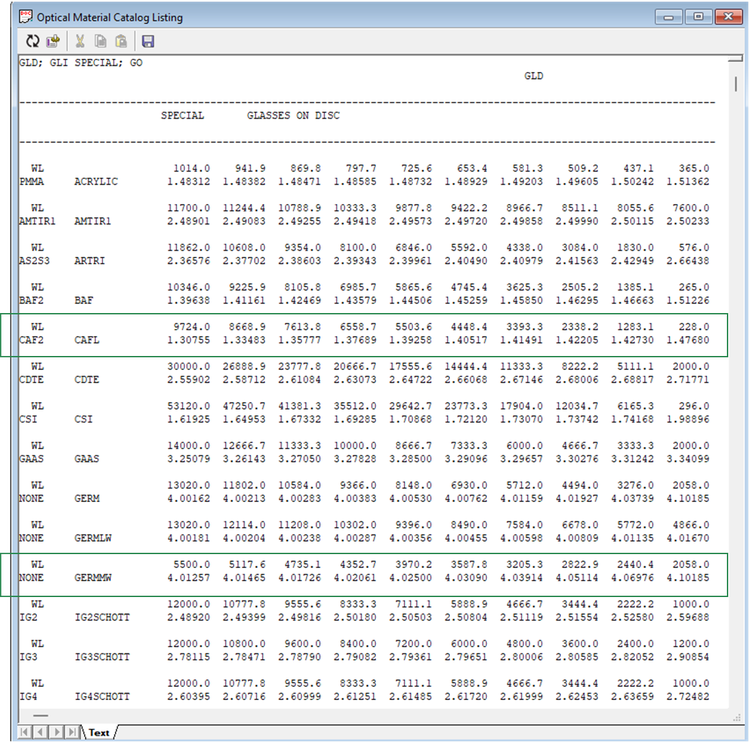
CODE V provides a catalog of available optical materials, and there are methods to view and sort available materials. Figure 2 shows how to list and sort by spectral index to locate other potential optical material options. Figure 3 lists the output and shows the Germanium and Calcium Fluoride index of refractive data over the waveband of interest.

Figure 2. CODE V GUI method to locate suitable materials in the material database “special’ catalog. The CODE V command line equivalent is “GLD; GLI SPECIAL; GO”
Preparing the Lens for Glass Expert
The optical system should be optimized using CODE V’s Automatic Design feature or AUT prior to running Glass Expert. It is important get the constraints, weights, and methods right so the Glass Experts optimization is robust. The starting lens was manually edited for:
- Update the waveband definition to 3–5 µm
- Replace unsuitable materials (e.g., LiF) with preliminary alternatives such as CaF2
- Add variables to all surface radii and thicknesses
The desired constraints were scripted in the file “AUT_FC_andAstig.seq” and include:
- Effective focal length, EFL, 251.8 mm
- Overall length, OAL, 484.7 mm
- Drive the following to be less than the quarter wave depth of focus, ±2λ*(F/#)2 or ±0.02 mm taking the following into account:
- Field curvature
- Astigmatism
- Axial color
- Weighted for reduced tolerance sensitivity using SN2
This script will be one of the inputs to Glass Expert, and this step ensures that subsequent material substitution does not mask underlying design sensitivity.
Applying CODE V Glass Expert
Glass Expert is included with CODE V installation. It works with Automatic Design (AUT) to intelligently select refractive materials that optimize lens performance. The typical Glass Expert workflow consists of:
- Creating a User-defined materials list, including:
- Candidate optical catalogs (or custom created catalogs)
- Refractive index range
- Bulk absorption limits
- Additional filtering constraints
- Input of reasonable material constraints into Glass Expert:
- High-density or absorbing materials permitted in thin elements
- High-density or absorbing materials minimized in large or thick elements
- Running Glass Expert to select the materials and optimize the design performance
The result is a practical, manufacturable material selection that improves color correction and overall system performance.
Glass expert does not provide a starting or default input file. If left blank, Glass Expert will help create the file using prompts and user responses. The default name of the file will be UserInputs.dat, which can later be edited and used. Each prompt has a default if the user is unsure about a response. See Figures 4 through 6 for examples.


Figure 6. A custom material will be added to the glass listing, so be sure to save the glasses in a user catalog and then quit and not execute. This will generate needed files to edit and return to later.
As part of this prompting, the glass material list will be filtered for many parameters such as cost, absorption, CTE match, etc. Since the potential material list will be reduced from the full catalog, a file containing the candidate or potential optical materials will be created, USER_GLASS.dat. The process will be briefly outlined here to generate these files for editing a custom optical material in the next section.
In summary, Glass Expert is first executed to generate:
- UserInputs.dat (search parameters)
- USER_GLASS.dat (candidate material list)
Figure 7 shows the files created by Glass Expert after answering all the prompts.

Update Glass Expert Files to Include Private Materials
We will edit the files created using the prompts discussed previously (see Figure 7) to add a custom optical material, ALON. We will therefore create:
- A customized MWIR input file
- A curated list of candidates MWIR materials
A private glass is added through a CODE V private catalog (PRV), and the script for this is shown in Figure 8. Refractive index data is imported from external sources.

Once the above commands are entered or read in using a .seq file, ALON is part of the lens information. This means it can be added to the list of potential materials for consideration in Glass Expert. First open the “USER_GLASS.DAT” file and modify or add the last line as shown in Figure 8. Note that this file treats "space" differently than "tab." It is critical to ensure "tab" is used between the columns. This will be manually saved as “PotentialMWIRmaterial.dat.”

Glass Expert’s user input file must be modified to use the new optical materials file created to include the private material ALON. The UserInputs.dat has been edited in Figure 10 and subsequently renamed to MWIRUserInputs.dat

Figure 10. UserInputs.dat file generated from Glass Expert. Here, modified to include a user material catalog in yellow and saved MWIRUserInputs.dat.
Line 1 shows the surfaces to be considered for glass replacement. The subsequent lines list additional information. Each line has a descriptor to stat the line.
When Glass Expert is run, it eliminates incompatible materials from the initial materials list including any new materials. It also creates a new materials file. In this case, the new file will include ALON. Subsequent runs of Glass Expert can use this new materials file if desired.
The above approach illustrates how Glass Expert can use both catalog and user-defined materials in the glass selection process. Figure 11 shows how to fully execute and run Glass Expert with a PRV added optical material.

Figure 11. GUI or Command line to execute Glass Expert to include a private catalog of optical material. Command line equivalent is “run cv_macro:glassexpert ‘AUT_FC_andAstig.seq’ ‘MWIRUserInputs.dat’ 7 ‘No’ ‘No’; GO”
Glass Expert Output and Dashboard
Glass Expert reports real-time performance metrics as it runs. Figure 12 shows the typical output windows and plots. This serves as a real-time dashboard to monitor its performance. The command window lists:
- Error function contributions
- Accepted and rejected glass sets
There is a plot window for the starting lens, the glass map (index vs dispersion), the currently best accepted lens, and the error function process. The example here has left the “performance file” empty, but replacement field can pass a script that contains further CODE V analysis. An example could be in a file “perf.seq” that has “RIM; GO” to plot the ray intercepts plot for each improvement found during Glass Expert operation.

Figure 12. Glass Expert during execution. The starting lens, glass map, and current best lens are plotted. The command line shows if a better solution is found by providing the current error function value. A plot of error function versus time is also provided so the user can monitor improvements in real time.
Glass Expert Results & Performance Comparison
A comparison of the baseline starting lens to the Glass Expert lens is compared side by side in Figures 13 through 17. The Glass Expert solution demonstrates:
- Less severe lens bending, indicating a more relaxed design with improved tolerance behavior (Figure 13)
- Field curvature and astigmatism reduced below quarter-wave depth of focus (Figure 14)
- Significant reduction in secondary color (Figure 15)


Figure 16. Ray intercepts plot comparison. The first airy diameter is 0.013 mm at 3.5 µm wavelength.

Conclusion
CODE V’s Glass Expert provides a systematic and repeatable approach to material selection for room temperature MWIR refractive optical systems. By combining user-defined constraints, curated material lists, and intelligent optimization logic, Glass Expert identifies glass solutions that balance optical performance with real-world manufacturing constraints. It is flexible enough to include user-entered optical materials entered into CODE V’s private catalog
In this 3–5 µm MWIR example, Glass Expert reduces secondary color, field curvature, and astigmatism below quarter-wave depth of focus while preserving the original paraxial design. The workflow naturally extends to more advanced analyses, including thermal and opto-mechanical modeling using CODE V’s Multi‑Environment Coupling (MECo).