
Cut Test Steps, Not Corners: Using Expressions in PTEM
Did you know that PathWave Test Executive for Manufacturing (PTEM) supports regular expressions in test step parameters? How often do you need to change test parameters in your test plan to accommodate different scenarios or test targets?
During test plan execution, the device under test (DUT) goes through multiple scenarios and conditions. Parameters constantly change with these scenarios, and manually updating each one can be error prone and time consuming. prone and time consuming.‑
Dynamic parameters can typically be handled with variables, especially when a test step uses the value “as is.” For example, in Figure 1, the PS Program VI test step uses standalone parameters to configure the output voltage and current limit. These can easily be assigned to variables such as OutV and OutA, which any earlier step can change.

Figure 1: PS Program VI test step using standalone parameters.
However, the same test step also includes an Overvoltage Protection parameter. This value usually depends on the primary voltage setting—typically OutV plus some margin. In this example, the protection value is set to 1.2 V above OutV.
So, if OutV is 24 V, Overvoltage Protection should be 25.2 V.
Hardcoding 25.2 V defeats the purpose of having dynamic parameters—when OutV changes, the protection value must update accordingly.
Using Expressions to Build Dynamic Parameters
In PTEM, any numeric or text parameter can be represented by an expression. Right click a parameter and select Assign Expression. When a parameter is expression based, a small calculator icon appears next to it. Clicking the icon opens the expression editor, where you can enter arithmetic formulas directly. This avoids the need to process values in separate steps and assign them back to variables.‑
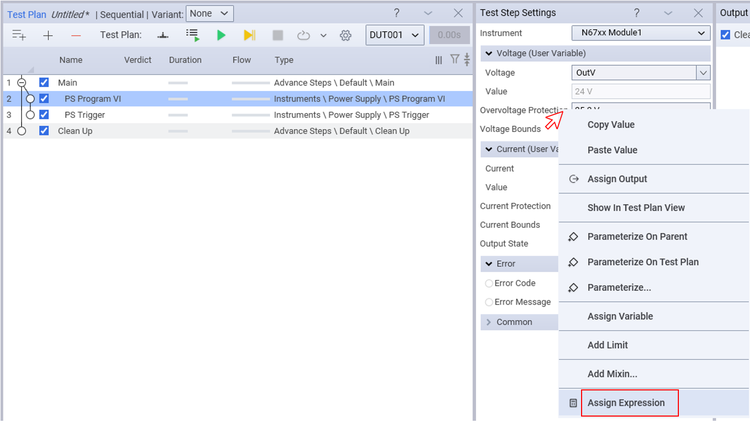
Figure 2: Assigning expressions to parameters.
Expressions support arithmetic, relational, and logical operators. Most test plans use arithmetic operations—adding, subtracting, multiplying, or dividing—to compute dynamic parameter values.
Let’s continue with the earlier example. To set Overvoltage Protection 1.2 V above OutV, enter:
OutV + 1.2
When OutV is 24 V, this expression evaluates to 25.2 V as shown in Figure 3 below.

Figure 3: Using expressions for dynamic parameters.
Using Expressions to Build SCPI Command Strings
Expressions can also combine text, numeric variables, constants, and arithmetic operations to form dynamic SCPI commands.
In the next example, we configure Overvoltage Protection using a SCPI command. A SCPI string often contains both static text and computed values, which traditionally requires multiple steps: formatting the string, storing it in a variable, and then sending it.
With PTEM expressions, formatting is done directly in the SCPI step.

Figure 4: Setting Overvoltage protection using SCPI.
A typical SCPI command to set protection voltage might be:
VOLT:PROT 25.2, (@1)
Here, 25.2 is made up of OutV + 1.2. Instead of hardcoding this value, convert the entire parameter into an expression.

Figure 5: Using expressions to build dynamic SCPI strings.
In the expression, static text is entered normally, while dynamic parts are enclosed in { }:
"VOLT:PROT {OutV + 1.2}, (@1)"
By placing the computed expression inside braces, PTEM evaluates it and inserts the result into the final command string. This eliminates the need for extra test steps just to build the SCPI command and makes the test step more generic and reusable across the test plan.
Final Thoughts
Stop creating additional test steps for simple parameter manipulation. Use PTEM expressions to keep your test steps cleaner, more dynamic, and easier to maintain.
More useful PTEM features are coming—stay tuned!
If you have questions or comments, feel free to reach out.
Stay safe and be happy.